Keyboard-Driven Email Workflow on Mac | bytemail
A keyboard-driven email workflow on Mac means you read, triage, reply, snooze and schedule mail without leaving the keyboard. bytemail is a native macOS email client built around that idea. It pairs shortcuts for common actions with a command palette for the rest, and every one of them acts on a single unified inbox across Gmail, iCloud and Outlook.
bytemail is pre-launch and collecting waitlist sign-ups. It needs macOS 14 or later and runs on Mac only. Join the waitlist on the bytemail homepage, or keep reading to see how the keyboard model works.
What a keyboard-driven email workflow on Mac looks like
Picture the usual interruption. You are mid-thought, you reach for the trackpad to archive one message, and the thread you were reading jumps out from under you. A handful of those a day and your focus is gone.
A keyboard-driven email workflow removes that reach. You handle reading, triage, replies, snoozing and scheduling with shortcuts and a command palette, and your hands stay on the home row. Every action has either a key or a searchable command, so nothing forces you back to the pointer. If you have been searching for a mouse-free email Mac setup, this is the model to look for.
Three input layers, no gaps
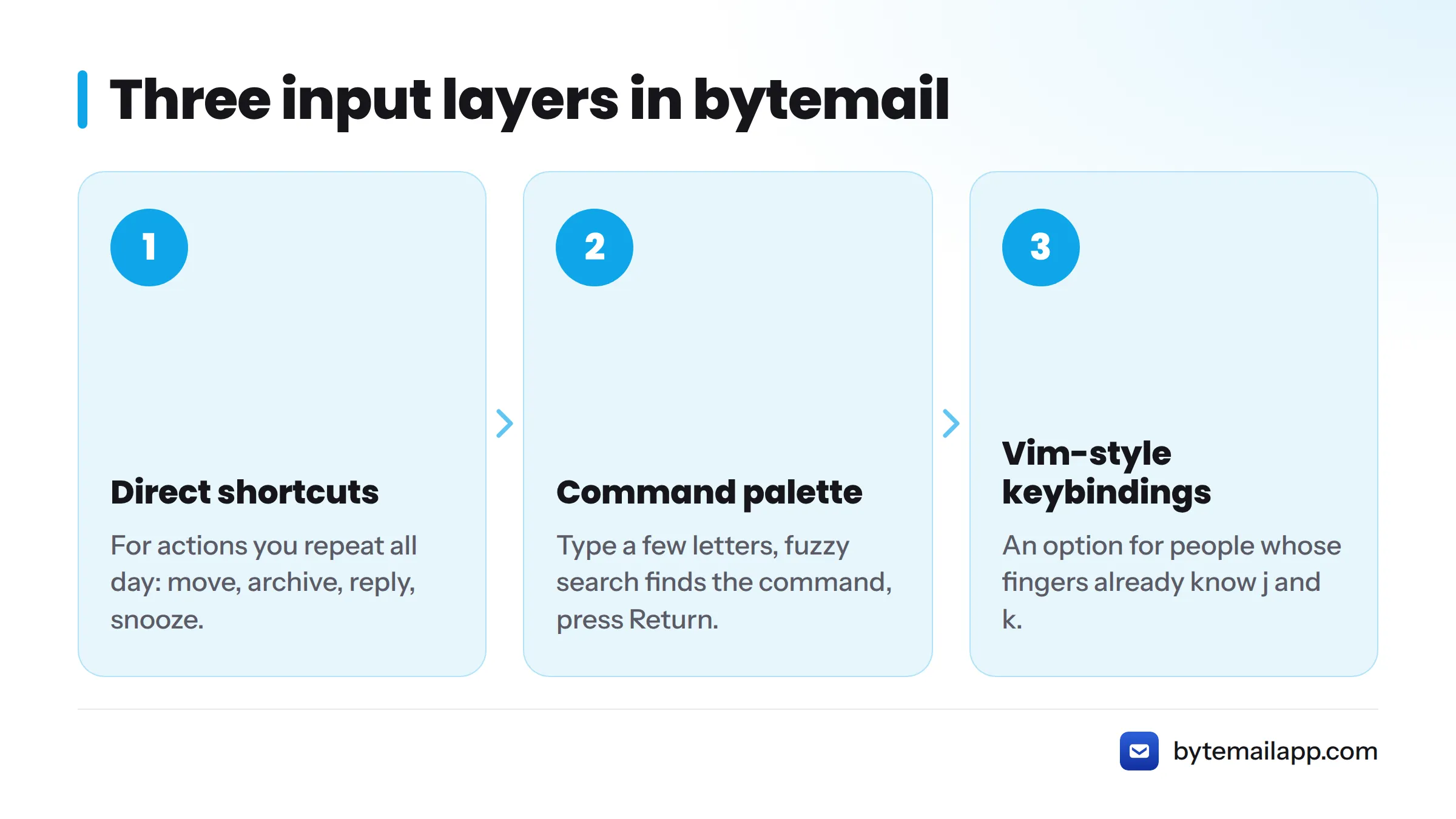
bytemail stacks three layers so coverage never runs out:
- Direct shortcuts for the actions you repeat all day: move, archive, reply, snooze.
- A command palette for everything without a dedicated key. You type a few letters, fuzzy search finds the command, and you press Return.
- Vim-style keybindings as an option, for people whose fingers already know j and k.
Keyboard-friendly vs keyboard-driven. A keyboard-friendly client has shortcuts for the popular actions. A keyboard-driven client lets you finish the whole job without touching the mouse, including awkward actions like switching accounts.
That distinction matters when you shop for a keyboard-first email client on Mac. Plenty of apps list shortcuts. Fewer cover the whole job.
Where mouse-first email slows shortcut-first Mac users down
Mouse-first clients are not broken. They assume a pointer is always nearby, and that assumption costs time in three places.
Hover-only actions and lost focus
Many web and hybrid clients reveal their buttons only on hover. A key press can also land in the wrong place after a modal dialog closes, because the app never handed focus back to the message list.
Different key maps for every account
Gmail on the web has its own key map, which you switch on in settings, per Google's Gmail keyboard shortcuts help page. Outlook has another. Apple Mail has a third. Run three accounts in three clients and you carry three key maps in your head. Our post on Gmail shortcuts vs Mac shortcuts covers where those conventions collide.
The long tail with no key
The most common gap sits at the edges: moving to a folder, setting a snooze time, scheduling a send, hopping to another account. Those are the actions that quietly drag your hand back to the mouse.
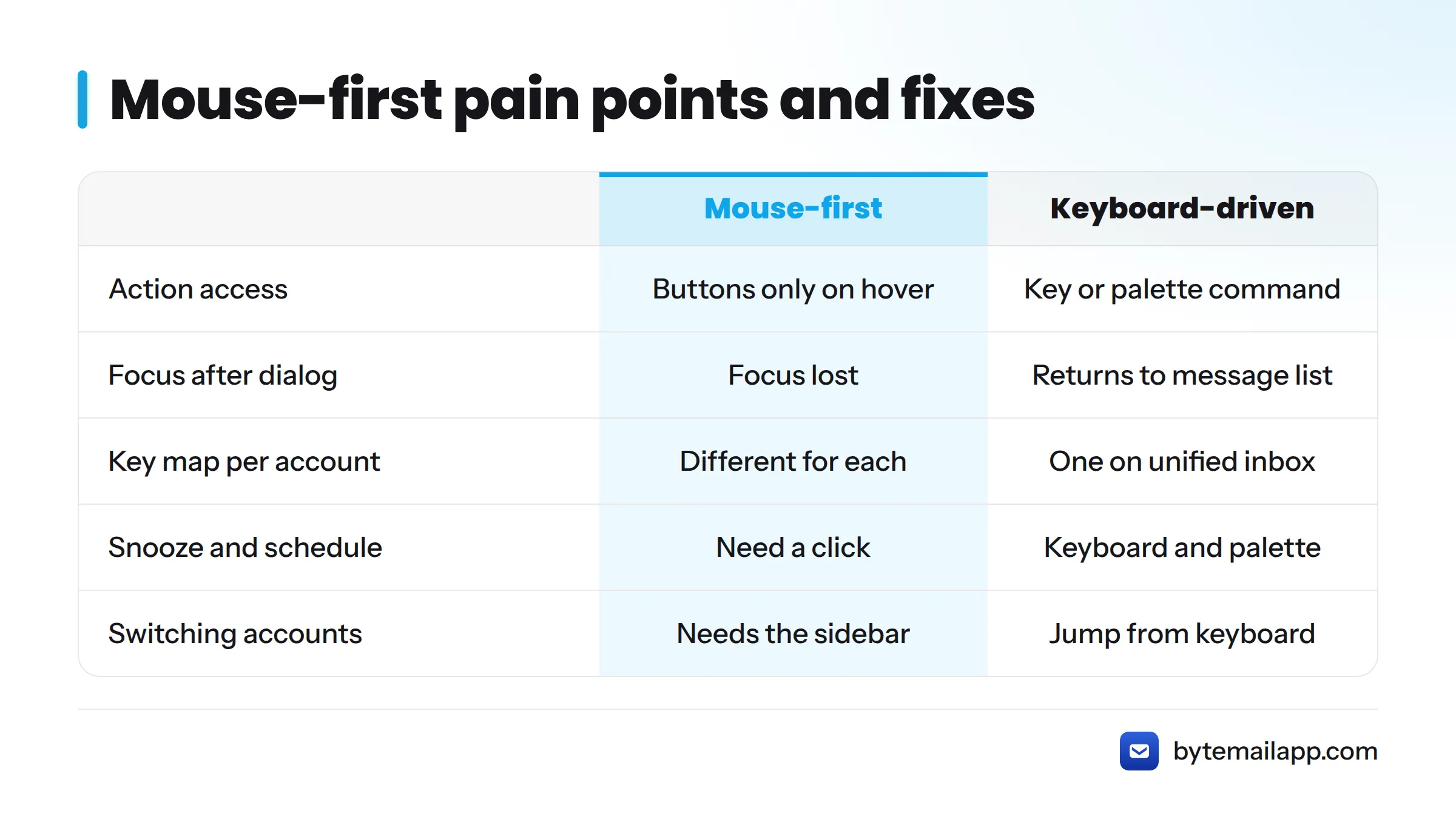
| Mouse-first pain point | Keyboard-driven fix |
|---|---|
| Buttons appear only on hover | Every action has a key or a palette command |
| Focus lost after a dialog closes | Native focus handling returns you to the message list |
| Different key map per account | One key map on the unified inbox |
| Snooze and schedule need a click | Reachable from the keyboard and the palette |
| Switching accounts needs the sidebar | Jump accounts from the keyboard |
How bytemail handles keys natively with AppKit
bytemail is a native macOS app, and that shapes how keys behave. On the Mac, AppKit sends a key press through the responder chain. It starts at the first responder, the view that currently has focus. If that view does not handle the key, the event moves up the chain until something does. Apple documents this model in its Cocoa event handling guide.
For you, that means focus acts the way it does in every other Mac app. A key press goes to the thing you are looking at, and shortcuts follow Apple's keyboard conventions. No embedded web page captures keys for itself. For the broader native story, see what makes bytemail a true native macOS email app.
Command palette email: reaching actions without a shortcut
Open the palette, type a fragment of what you want, and run it. This layer also answers a common question: what does Ctrl+K do in email? In most keyboard-first clients it opens the command palette, a search box for actions. In bytemail, check the in-app shortcut settings for the exact Mac key that opens it.
Vim-style keybindings and remapping
If j and k already mean "next" and "previous" in your hands, switch on Vim-style keybindings. Shortcuts are also remappable, so habits from another client carry over instead of getting thrown away.
Here is the full path of a key press: the native handler picks it up (first responder, then the responder chain), and the action runs on the unified inbox.
Walkthrough: clearing an inbox from the keyboard across Gmail, iCloud and Outlook
Here is the sequence, start to finish, with no pointer involved. Exact keys live in the in-app shortcut settings, so this list names actions and does not guess at keystrokes.
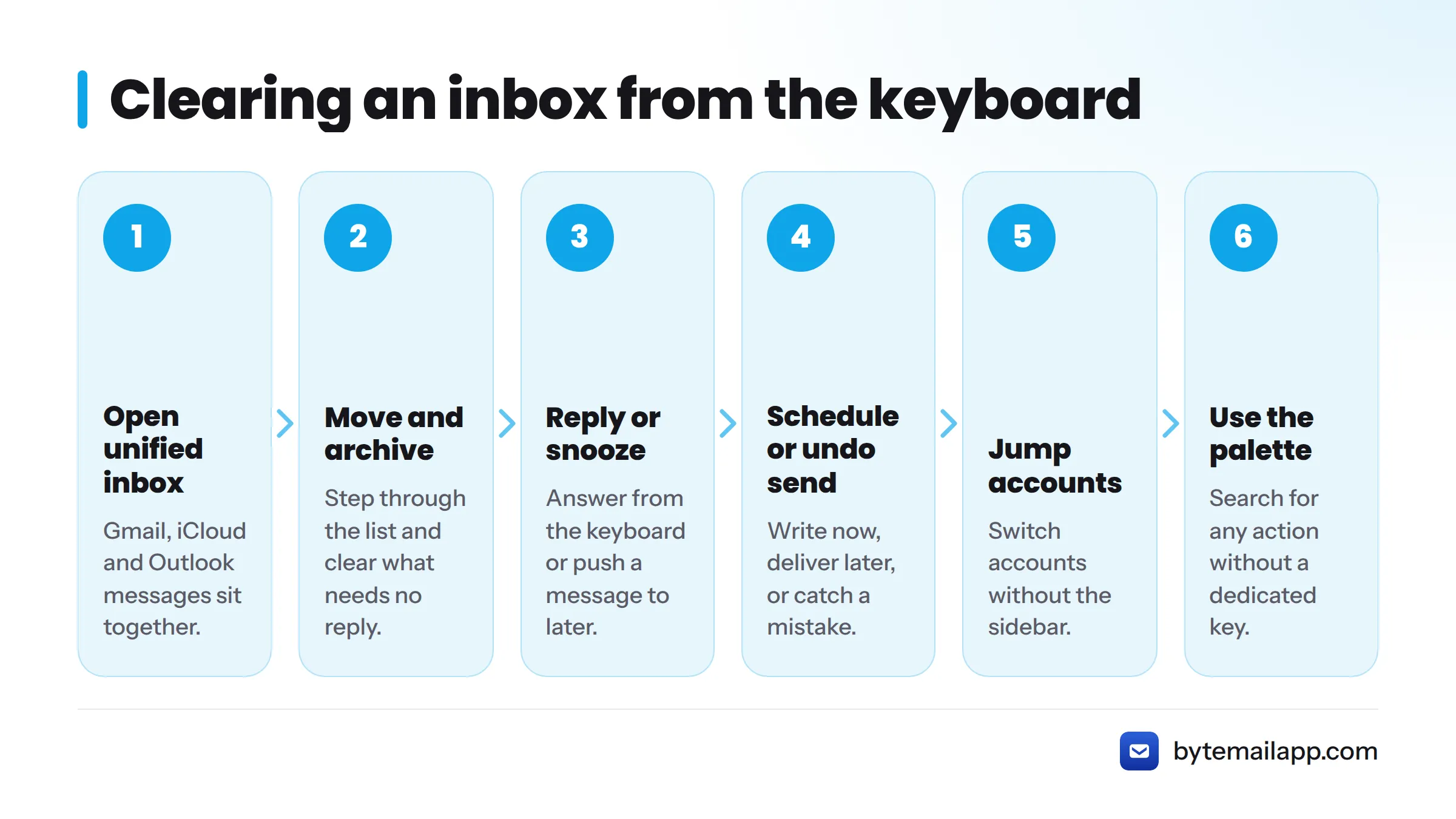
- Open the unified inbox. Gmail, iCloud and Outlook messages sit in one unified inbox for all your accounts.
- Move through messages. Step down the list with the navigation keys, or with j and k if Vim-style bindings are on.
- Archive. Clear anything that needs no reply. The key stays the same whatever the provider.
- Reply. Open a reply, type, and send, all from the keyboard.
- Snooze. Push a message to the time you can act on it.
- Schedule send. Write now, deliver later.
- Undo send. Catch a mistake before it lands.
- Jump accounts. Switch the account you are working in without the sidebar.
- Use the palette for anything left. If an action has no dedicated key, search for it.
Same keys, three providers. The key map acts on the unified inbox, so archiving a Gmail thread, an iCloud message and an Outlook message takes the same press.
So, can you send an email using the keyboard alone? Yes. Start a new message, fill in the recipient and body, then send with the shortcut shown in the app's shortcut settings.
Provider setup is a separate job, covered on the integrations page. Two guides, one on how to triage your inbox from the keyboard and one on how a command palette speeds up email, are planned and will cover these ideas at greater length once they go live.
Ready to try it? Join the waitlist and watch the public changelog for new shortcut additions.
The bytemail shortcut set, taken from the app
I do not publish keystrokes from memory. A wrong key on a shortcut page costs you trust and time, so exact values come from the shipping build and the in-app shortcut settings. This table maps each action to where you find it.
| Action | Shortcut | Notes |
|---|---|---|
| Move through messages | See in-app shortcut settings | Vim-style j and k available as an option |
| Archive | See in-app shortcut settings | Same key for every provider |
| Reply | See in-app shortcut settings | |
| Snooze | See in-app shortcut settings | Also reachable from the palette |
| Schedule send | See in-app shortcut settings | Also reachable from the palette |
| Undo send | See in-app shortcut settings | |
| Switch account | See in-app shortcut settings | |
| Open command palette | See in-app shortcut settings | Fuzzy search for any action |
A full list of email keyboard shortcuts for Mac and a guide to Vim-style keybindings in an email client are both planned, along with a printable cheat sheet. Until they arrive, the changelog records each shortcut addition.
Who bytemail's keyboard workflow fits, and who it doesn't
It fits you if:
- You are a shortcut-first Mac user who treats the mouse as a fallback.
- You run several accounts and want one key map across them. See multiple email accounts on Mac.
- You are a power user who wants remappable keys and optional Vim bindings.
It does not fit you if:
- You need Windows or Linux. bytemail is Mac only.
- You run macOS older than 14.
- You want a terminal interface like mutt, neomutt or aerc. bytemail is a graphical app.
- You need an app you can download today. It is pre-launch.
Verdict: is bytemail the right power user email client for Mac?
Run a quick test. If you answer yes to all three questions, bytemail was built for you:
- Do you use a Mac on macOS 14 or later?
- Do you want every email action, including snooze, schedule and account switching, on the keyboard?
- Do you want the same keys across Gmail, iCloud and Outlook?
In my opinion, the third point is where bytemail pulls ahead of most shortcut-heavy clients. One consistent model beats three half-remembered ones. If you are still comparing options, see the best email client for Mac, tested and ranked. When you are ready, join the waitlist and check bytemail pricing.
Frequently asked questions
Can I use email on a Mac without a mouse?
Yes. With bytemail you can read, triage, reply, snooze, schedule and switch accounts from the keyboard. The command palette reaches any action that has no dedicated shortcut.
Does bytemail support Vim-style keys?
Yes. Vim-style keybindings are an option, so j and k can move you through your messages if that is what your fingers expect.
Do the shortcuts work across Gmail, iCloud and Outlook accounts?
Yes. Shortcuts act on one unified inbox, so the same key does the same job whichever provider a message came from.
Can I change the shortcuts?
Yes. Shortcuts are remappable, so you can bring habits over from other clients.