What Is IMAP? How It Works for Mac Email

IMAP (Internet Message Access Protocol) is the standard that lets an email app read and manage mail that stays on your provider's server. Your Mac shows a synced view of that mailbox, so reading, moving or deleting a message on one device updates it on all of them. IMAP retrieves and organizes mail. SMTP sends it.
I build a native Mac email client, so I spend my days watching what an app asks an IMAP server for. This guide covers IMAP on Mac without the jargon. Let's break it down.
What Is IMAP? The Short Version
IMAP is a set of rules that an email client and a mail server follow when they talk to each other. The server holds your master mailbox. The client, such as an app on your Mac, asks the server what is there and shows it to you.
IMAP Meaning: Internet Message Access Protocol
The acronym stands for Internet Message Access Protocol. The IETF publishes the specification. RFC 3501 defines IMAP4rev1, and RFC 9051 defines the newer IMAP4rev2. Some account screens say "IMAP4." That is the same protocol family.
IMAP and SMTP Difference: Retrieving vs Sending
People mix these two up all the time, but they do different jobs.
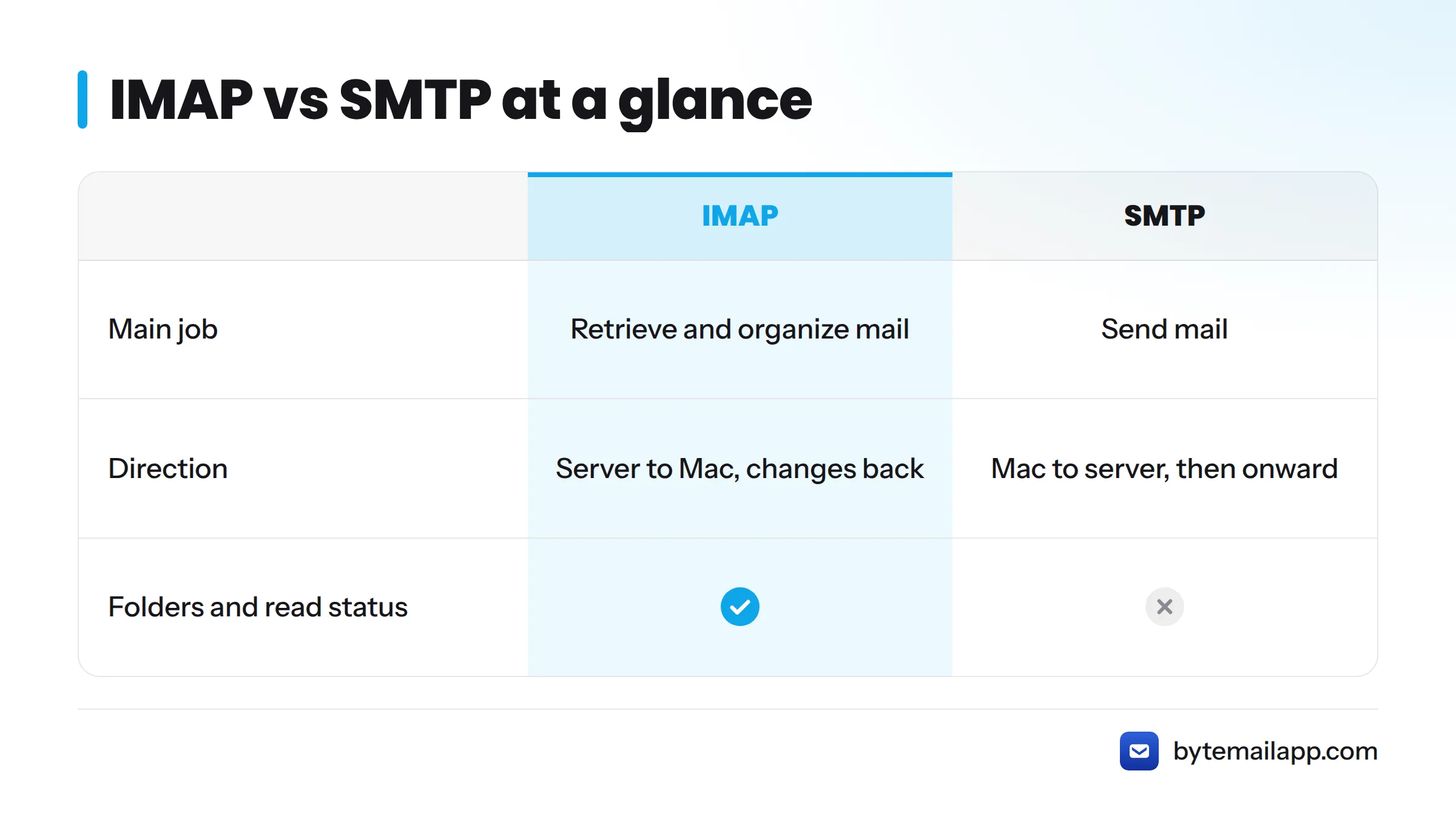
| IMAP | SMTP | |
|---|---|---|
| Main job | Retrieve and organize mail | Send mail |
| Direction | Server to your Mac, plus changes back | Your Mac to the server, then onward |
| Handles folders and read status | Yes | No |
Here is the IMAP and SMTP difference in one line: IMAP lets many devices look at one mailbox that lives on the server, while SMTP carries your outgoing mail. A mail client uses SMTP to send and IMAP for everything you read and file.
How Does IMAP Work? The Server Keeps the Mail, Your Mac Keeps a Synced View
Think of the server as a filing cabinet and your Mac as a window onto it. Your Mac, iPhone and iPad each connect to the same mailbox, and none of them owns the mail.
Picture the setup like this. The mail server sits in the middle. Your Mac, with its local cache, connects on one side, and your other devices connect on the other. Changes flow through the server and never pass directly from one device to another.
That model is why an IMAP account behaves the same on every screen you own.
What a Native Mac Client Requests From an IMAP Server
Clients follow a broadly similar pattern. This is how it looks from the developer's chair, described conceptually:
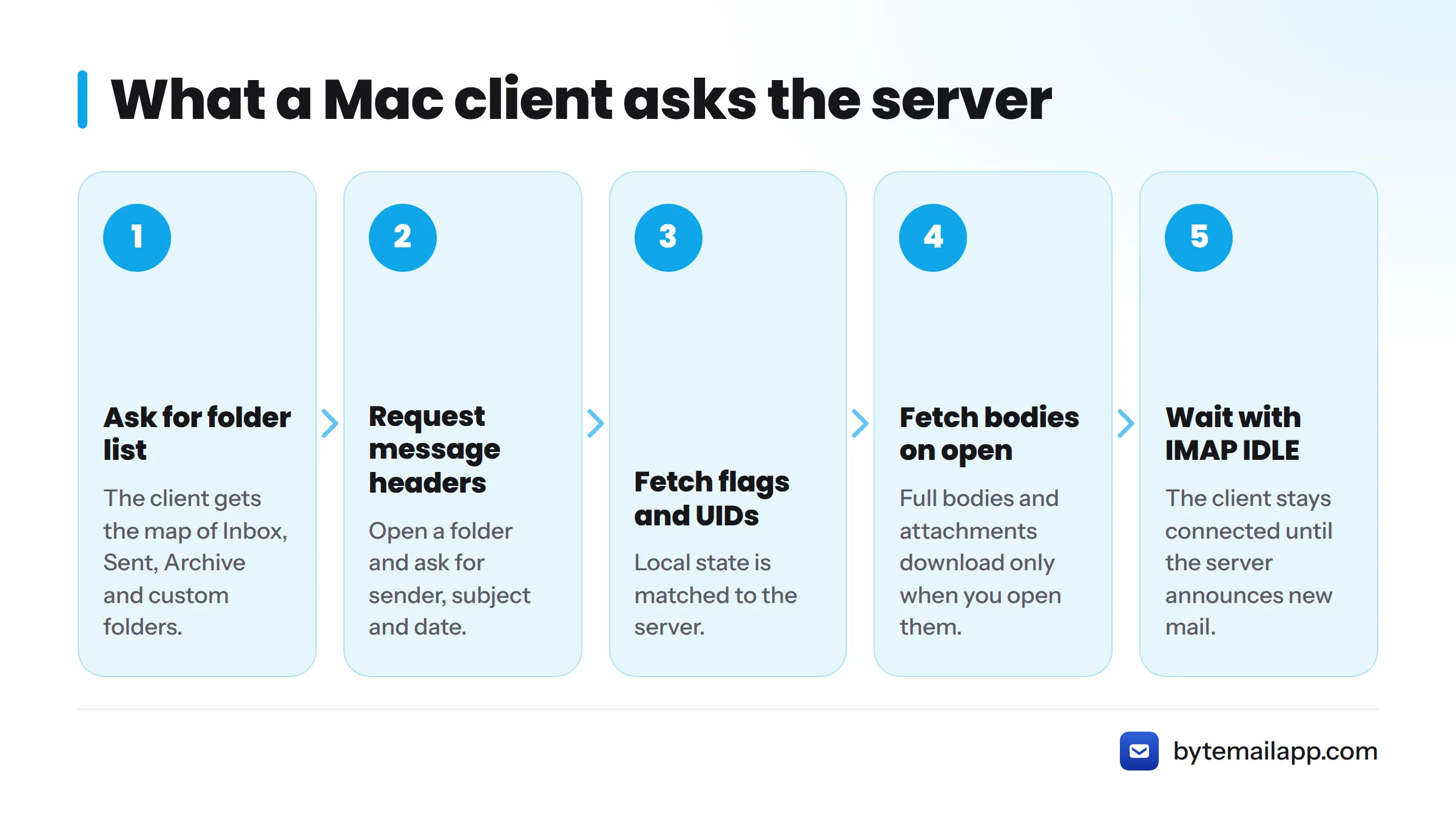
- Ask for the list of folders.
- Open a folder and ask for message headers (sender, subject, date).
- Ask for flags and each message's UID so local state matches the server.
- Fetch a full body or attachment only when you open it.
- Stay connected and wait for the server to announce new mail (IMAP IDLE).
The Folder List Comes First
The client needs the map before the contents. Inbox, Sent, Archive and your custom folders all come from the server.
Headers Arrive Before Bodies
Headers are small, so fetching them first fills your message list fast. Bodies and attachments download when you click. IMAP does not pull down all your email up front.
Flags and UIDs Keep the Client in Step
The client uses flags and UIDs to reconcile changes, and the next section covers both. If you want the product view, see using IMAP accounts in a native Mac client.
IMAP Folders and Flags: How Every Device Stays in Step
Folders live on the server. So do flags, the small markers on each message such as read, flagged or deleted. Because flags are server-side state, they travel between devices.
Each message in a folder also gets a UID, a unique number the server assigns. The client refers to a message by UID instead of by its position in the list. Positions shift whenever mail arrives or disappears, so UIDs give the client a stable handle for "this exact message."
| Action on one device | What your other devices see |
|---|---|
| Read a message | It turns read everywhere |
| Flag a message | The flag appears everywhere |
| Move to another folder | It leaves the old folder and appears in the new one |
| Delete | It is marked deleted, then removed from the mailbox |
IMAP IDLE: New Mail Without Constant Polling
Without IDLE, a client would have to ask "anything new?" again and again. That is polling. With the IDLE extension, defined in RFC 2177, the client holds its connection open and the server speaks up when something arrives. The result feels like push email: new mail shows up on your Mac without a manual refresh.
What Stays on Your Mac and What Stays on the Server
| Lives on the server | Lives on your Mac |
|---|---|
| Master mailbox | Local cache of headers and messages you opened |
| Folders | On-device search index |
| Flags and UIDs | Your account credentials, stored in the macOS Keychain |
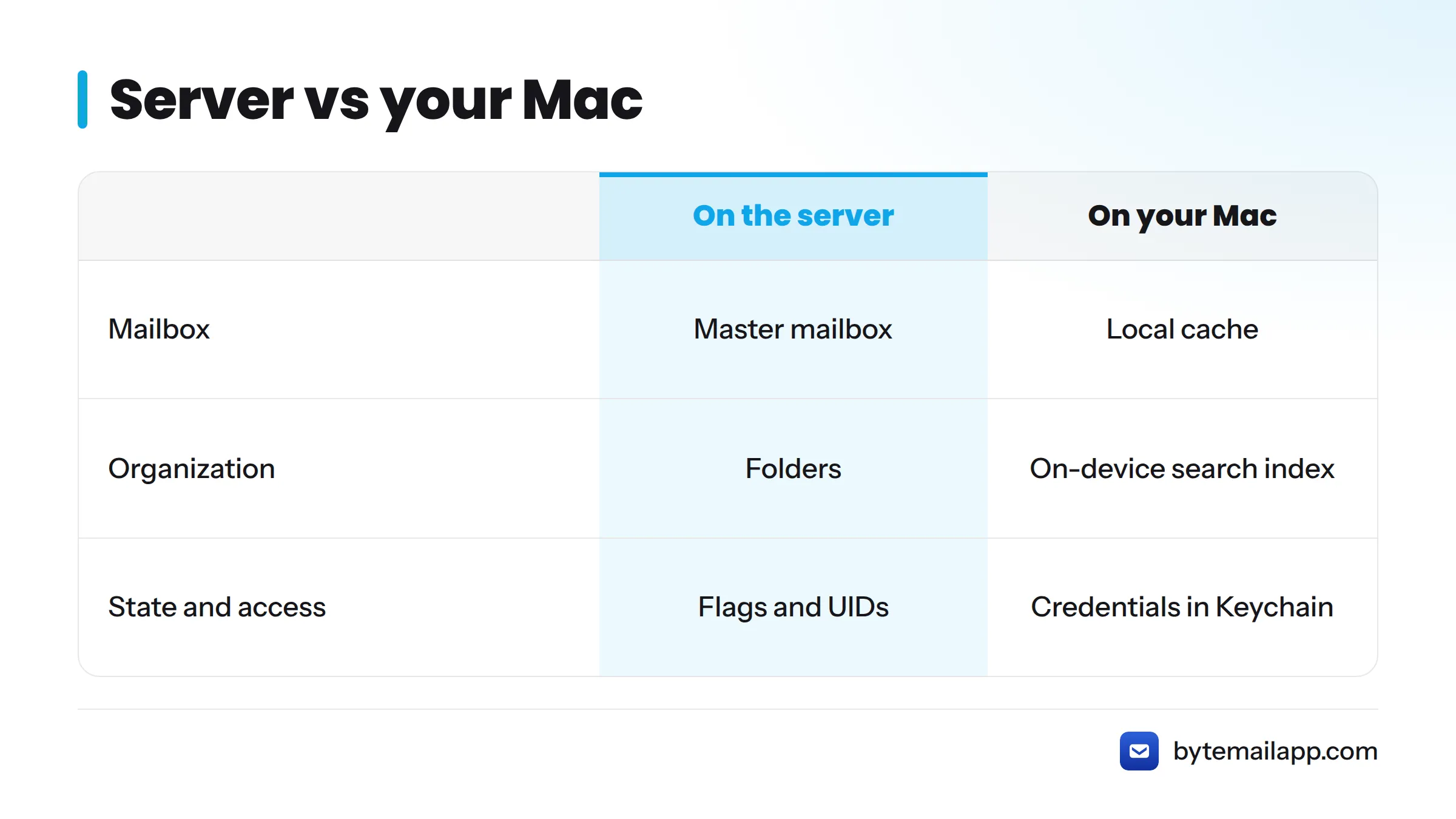
The cache is why you can reread opened mail offline. It also powers fast offline email search on your Mac. This split is the easiest way I have found to explain IMAP to non-technical friends: the server is the truth, and your Mac keeps a fast, disposable copy.
Next Steps With IMAP on Mac
You now have the concept. For the practical side, look for guides on setting up an IMAP account on your Mac, how IMAP differs from POP3, and IMAP SSL/TLS ports. Each of those deserves its own page.
If you want to see IMAP email in a native Mac app, download bytemail and connect an account. You can also read what makes it a true native macOS email app.
FAQ
What does IMAP stand for? Internet Message Access Protocol.
Is IMAP the same as SMTP? No. IMAP retrieves and organizes mail you have received. SMTP sends mail.
Does IMAP download all my email? No. Clients fetch headers first, then bodies or attachments when you open a message.
What is an IMAP account? An email account whose mail stays on the provider's server and is accessed through IMAP by any compatible client.
What is IMAP IDLE? An extension that lets the server notify a connected client about new mail, so the client does not keep polling.