How to Add a Gmail Account to Mac (2026 Steps)
To add a Gmail account to your Mac, open your Mac email app, start a new account, and pick Gmail. A browser window opens for Google sign-in. Approve the permissions there, then let the mailbox sync. You need macOS 14 or later. Below is the full walkthrough, plus fixes for the errors that trip people up.
Last tested: October 2026, by the bytemail team on macOS 14 and later.
I've watched plenty of people get stuck at this exact moment. They search for a Gmail app, find a video that points to the App Store, and leave empty-handed. Let's break it down properly.
Quick Answer: How to Add a Gmail Account to Your Mac
Google does not make an official native Gmail app for macOS. On a Mac, Gmail is either a browser tab or your account connected to a Mac mail app. Google's own Gmail Help documents how to read Gmail in other email clients, so connecting your account is the supported route.
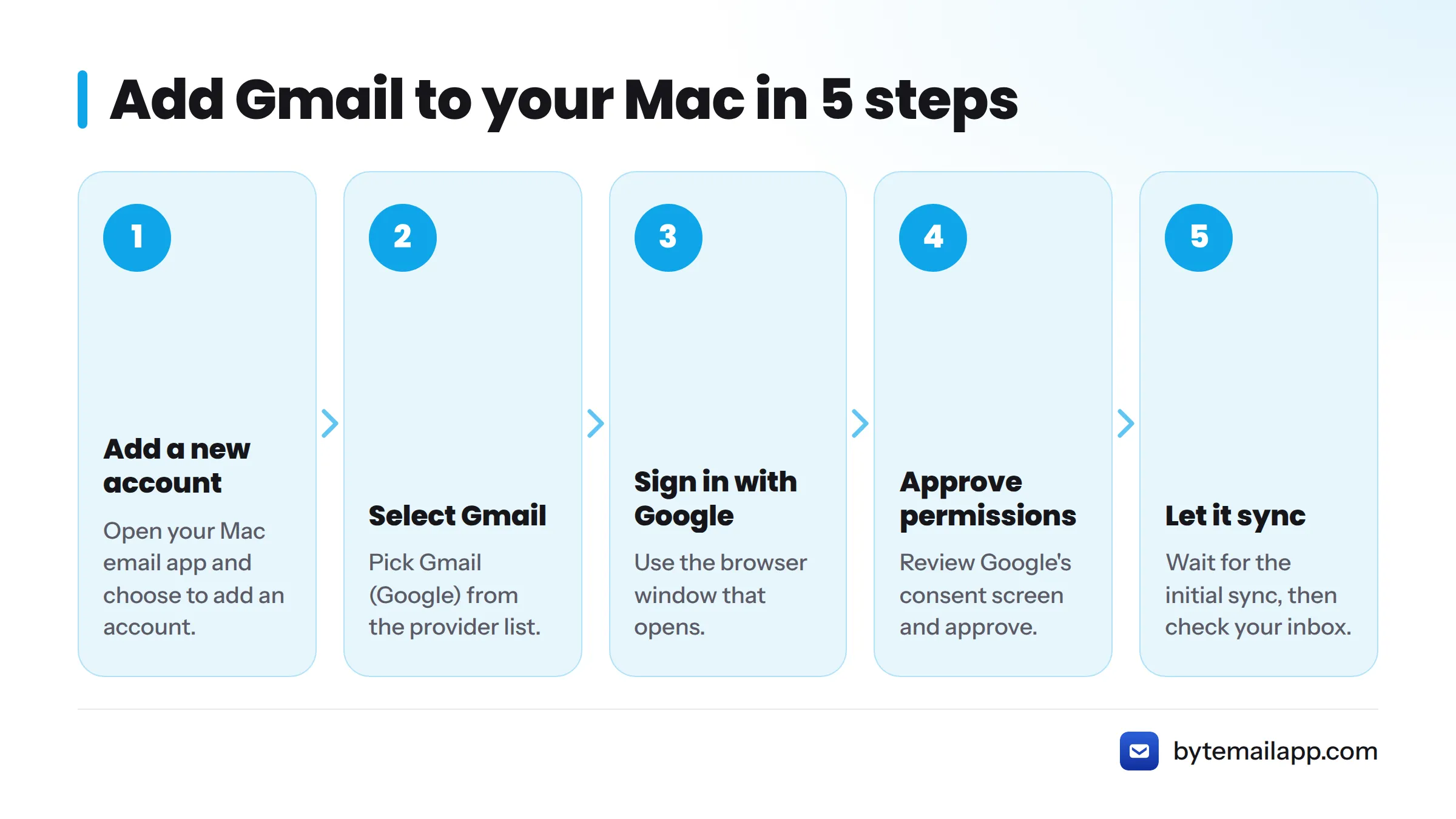
- Open your Mac email app and choose to add a new account.
- Select Gmail (Google) from the provider list.
- Sign in with Google in the browser window that opens.
- Review and approve the permissions on Google's consent screen.
- Wait for the initial mailbox sync, then check your inbox.
The steps below use bytemail, a native Gmail app for Mac. Apple Mail follows a similar pattern through System Settings, under Internet Accounts, as described in Apple Support's Mail guide.
What You Need Before You Set Up Gmail on macOS
Run through this checklist first. It takes under a minute and heads off most sign-in trouble.
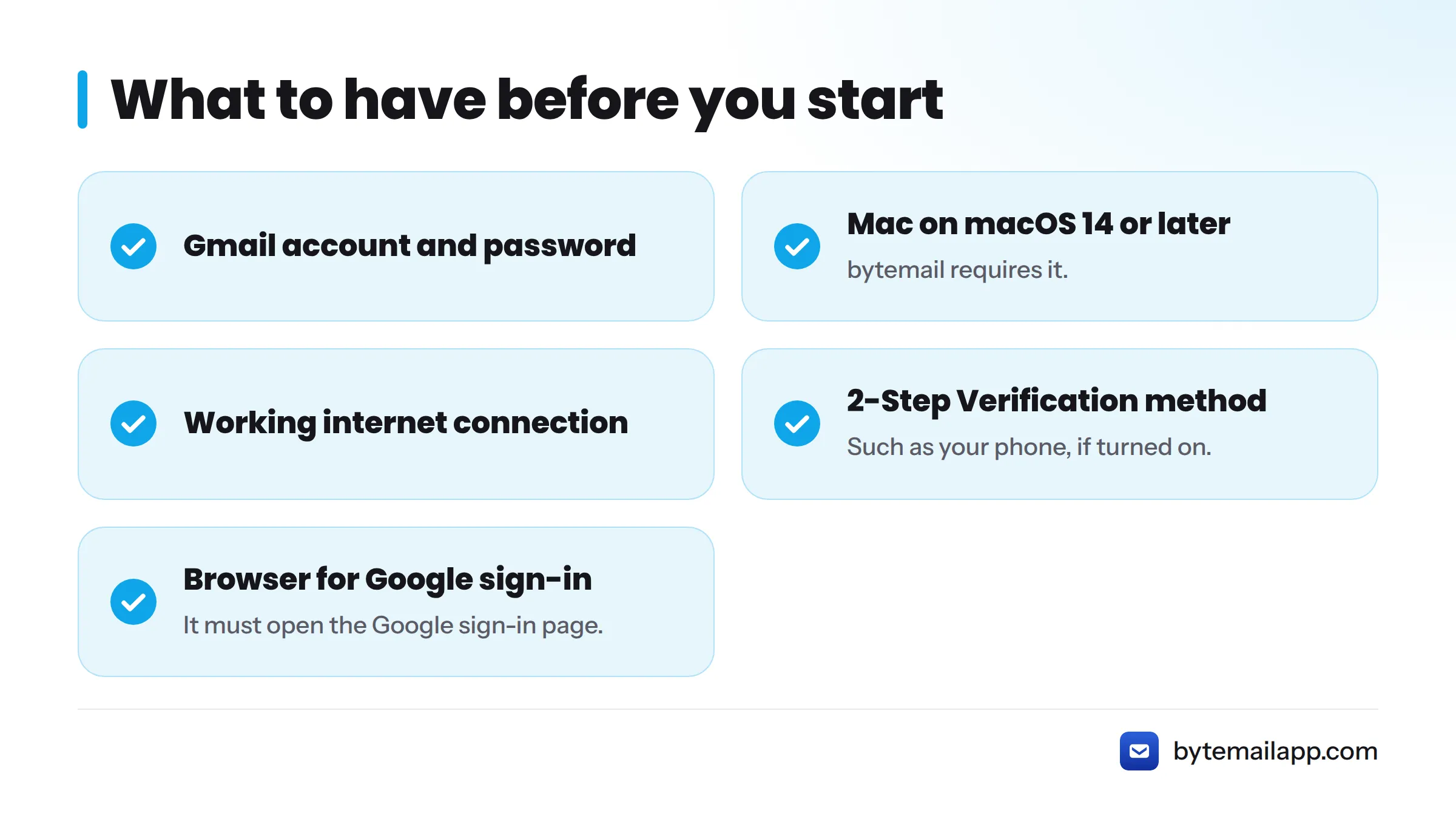
- A Gmail account and its password
- A Mac running macOS 14 or later (bytemail requires it; the bytemail FAQ lists the requirements)
- A working internet connection
- Your 2-Step Verification method within reach, such as your phone, if you have it turned on
- A browser that can open the Google sign-in page
Why does a browser open? Sign-in uses OAuth 2.0, a standard that lets you approve access on Google's own page. You type your password there, not into the mail app. In my view, that is the safer design, and it explains why a browser window appears mid-setup.
Step 1: Open the Mac App and Start a New Account
Open bytemail. On first launch, it asks you to add an account. If you already have one connected, open the account settings and add another. Pick Gmail from the list of providers.
One honest note: at the time of writing, bytemail had not launched publicly and was taking signups through a waitlist. The flow below is what our team observed while testing.
Step 2: Choose Gmail and Use the Gmail Sign In in the Mac App
Your default browser opens a standard Google sign-in page. Enter your Gmail address, then your password. If the page shows several accounts, choose the one you want. Picking the wrong one is a common slip, so read the address twice.
If you use 2-Step Verification
When 2-Step Verification is on, Google asks for a second proof after your password. Approve the prompt on your phone or enter the code. You don't need to turn it on just to connect Gmail to your Mac. If you already use it, you get one extra prompt, nothing more.
Step 3: Review the Permissions Google Asks You to Approve
Next comes the Google consent screen. It lists what the app wants to do with your account, and you decide whether to approve. Read it before you click through. You can review or remove an app's access later from your Google Account settings, as Google's guide to third-party access explains.
In bytemail's case, sign-in tokens live in the macOS Keychain, and no bytemail cloud relay sits between your Mac and Google. The privacy-focused email page covers that design in more detail.
Step 4: Let Your Mailbox Sync
After you approve, the browser hands you back to the app and the initial sync begins. Folders appear first, then messages fill in as they download. A large mailbox takes longer than a small one. I won't promise a time, because it depends on your account and connection. Leave the app open and let it finish.
Step 5: Confirm Gmail Is Working
Run this quick check:
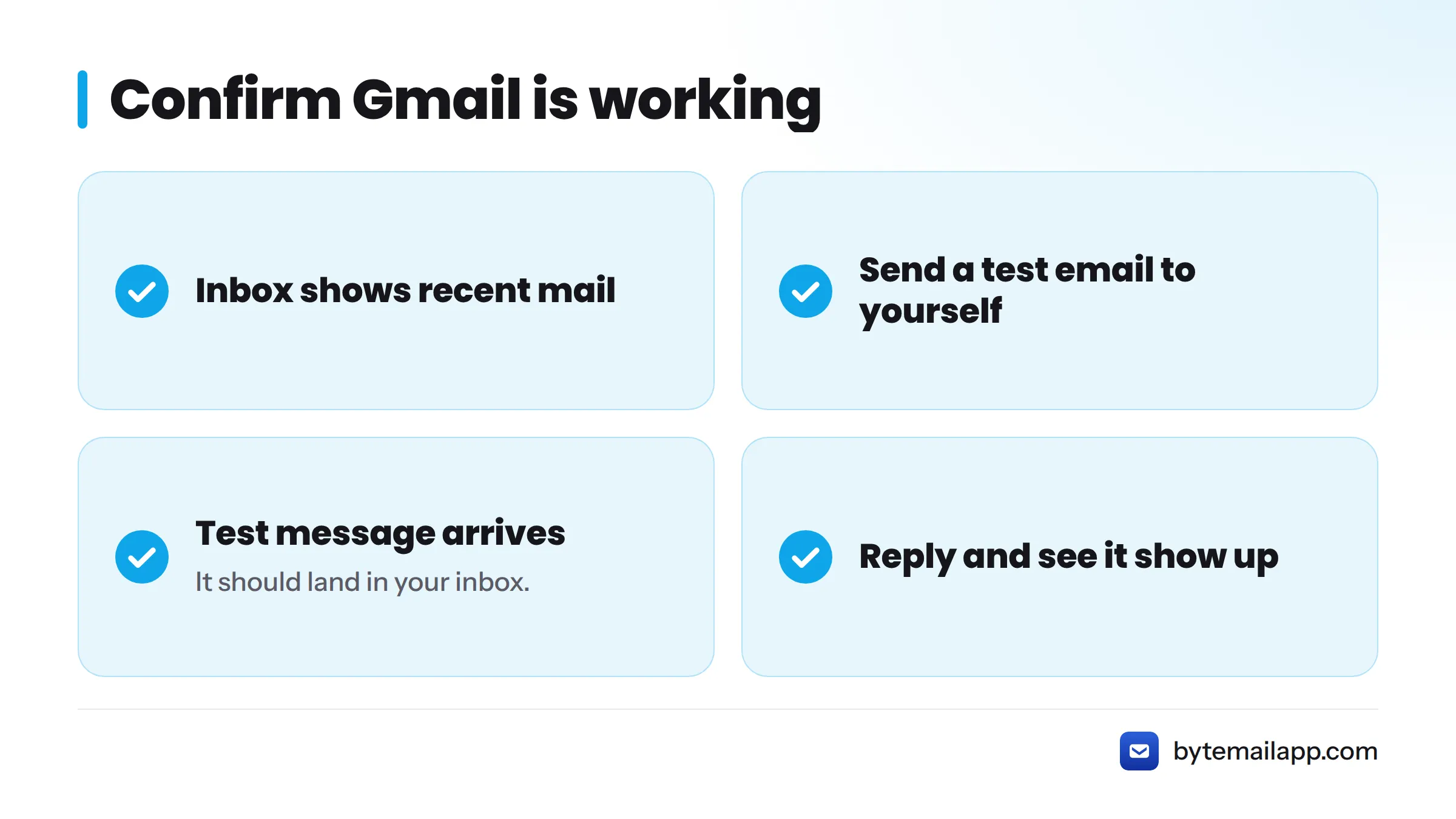
- Your inbox shows your recent mail
- You send a test email to yourself
- The test message arrives in your inbox
- You reply to it and the reply shows up
If all four pass, you're done. Adding Gmail to a mail app does not delete or rewrite your mail. Your messages stay in your Gmail account.
Troubleshooting: Gmail Not Adding to Mac and Other Common Errors
Some of these fixes come from setup problems our early testers hit. Others come from a public Apple Community thread where a user on macOS 14.2 ran into a Google 400 error. None of them are guarantees, but they are the steps that often help.
| Symptom | Likely cause | What to try |
|---|---|---|
| "Couldn't sign you in" or sign-in blocked | Google did not accept the sign-in attempt, or the wrong account was chosen | Check your connection, retry, confirm the correct Google account, and review the notice on your Google Account security page |
| "Password or authentication failed" | A mistyped password, or an expired or revoked approval | Retry the sign-in from the browser page, then remove and re-add the account if it persists |
| Google "400 error" page | A browser or session problem during sign-in | Try a different default browser, restart your Mac, or restart in Safe Mode and add the account again (one fix reported in the Apple thread) |
| Browser never returns to the app | The handoff back to the app was interrupted | Close the tab, quit and reopen the app, and try again |
| Nothing appears after sign-in | The initial sync has not finished, or the connection dropped | Check your internet connection and give the sync time to complete |
If you keep hitting authentication failures, a separate password method is sometimes the cause. We cover when an app-specific password is needed in a dedicated guide.
Next Steps
Your Gmail inbox is now on your Mac. From here:
- Want everything in one place? Combine Gmail with your other inboxes.
- Need more accounts? Read our guide on how to add more Gmail accounts and switch between them.
- Curious how your folders map? The Gmail labels guide shows how your labels appear in the app.
Ready to try it? Download bytemail and connect Gmail, or join the waitlist if launch access isn't open yet. bytemail pricing lists the plan options.
FAQ
Is there an official Gmail app for Mac?
No. Google does not offer a native Gmail app for macOS. You use Gmail in a browser or connect your account to a Mac mail app such as Apple Mail or bytemail.
Do I need to turn on 2-Step Verification to add Gmail to my Mac?
No. If it's already on, Google asks for a second verification after your password. If it's off, you skip that prompt.
Why does a browser window open when I add Gmail?
Google uses browser-based OAuth sign-in. You enter your password on Google's page and approve access there, rather than typing it into the app.
Will adding Gmail to my Mac change my Gmail account?
Adding the account does not delete your mail, and your messages remain in your Gmail account. You can revoke the app's access at any time from your Google Account settings.
What should I do if Gmail won't add to my Mac?
Check your internet connection, confirm you chose the right Google account, and retry. If a 400 error appears, try another default browser or restart your Mac. The troubleshooting table above covers each symptom.